- Close all applications.
- On the Windows taskbar, click Start Control panel.
- If your operating system is Windows 2000, click Start Settings Control Panel.
- Double-click Add or remove programs.
- In the Add or remove programs dialog box, choose CorelDRAW Graphics Suite X3 from the list, and click Change.
- In the InstallShield wizard, click the Modify button .
- Follow the instructions that appear.
- Well done!
- See also 'CorelDRAW Tutorial, Tips, and Tricks to install CorelDRAW Graphics Suite X3 applications'
Showing posts with label CorelDRAW Graphics Suite X3. Show all posts
Showing posts with label CorelDRAW Graphics Suite X3. Show all posts
Thursday, September 10, 2009
CorelDRAW Tutorial, Tips, and Tricks to add or delete components in a CorelDRAW Graphics Suite X3 installation
The following CorelDRAW Tutorial, Tips & Tricks post, have a title 'CorelDRAW Tutorial, Tips, and Tricks to add or delete components in a CorelDRAW Graphics Suite X3 installation'. We hope by learning this CorelDRAW Tutorial, Tips & Tricks post below will useful and helpful for all CorelDRAW users to know the secret of CorelDRAW and improve their CorelDRAW skills. Here are the CorelDRAW Tutorial, Tips, and Tricks:

Monday, August 10, 2009
CorelDRAW Tutorial, Tips, and Tricks to install CorelDRAW Graphics Suite X3 applications
The following CorelDRAW Tutorial, Tips & Tricks post, have a title 'CorelDRAW Tutorial, Tips, and Tricks to install CorelDRAW Graphics Suite X3 applications'. We hope by learning this CorelDRAW Tutorial, Tips & Tricks post below will useful and helpful for all CorelDRAW users to know the secret of CorelDRAW and improve their CorelDRAW skills. Here are the CorelDRAW Tutorial, Tips, and Tricks:
The installation wizard makes it easy to install CorelDRAW Graphics Suite X3 applications and components. It lets you:
Here are the steps on this 'CorelDRAW Tutorial, Tips, and Tricks to install CorelDRAW Graphics Suite X3 applications':
The installation wizard makes it easy to install CorelDRAW Graphics Suite X3 applications and components. It lets you:
- install any applications included in your software package
- add and delete components in the current installation
- repair the current installation by reinstalling all application features
- uninstall CorelDRAW Graphics Suite X3
Here are the steps on this 'CorelDRAW Tutorial, Tips, and Tricks to install CorelDRAW Graphics Suite X3 applications':
- Close all applications.
- Insert CD 1 in the CD drive.
- If the installation wizard does not start automatically, click Start on the Windows taskbar, and click Run.
- Type D:\CGS13\Setup, where D is the letter that corresponds to the CD drive.
- Follow the InstallShield wizard instructions for installing the software.
- You can also activate the installation wizard by clicking Start on the Windows taskbar, clicking Run, and typing D:\autorun.
- Well done!
Tuesday, June 30, 2009
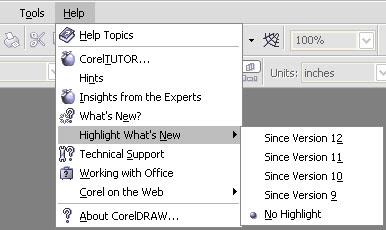
CorelDRAW Tutorial, Tips, and Tricks to highlight what was new in earlier versions of CorelDRAW Graphics Suite X3
Below here, you can find and read our short and useful 'CorelDRAW Tutorial, Tips, and Tricks to highlight what was new in earlier versions of CorelDRAW Graphics Suite X3'. This 'CorelDRAW Tutorial, Tips, and Tricks to highlight what was new in earlier versions of CorelDRAW Graphics Suite X3' are very useful for all CorelDRAW users, especially for CorelDRAW Graphics Suite X3. Let's follow the steps on this 'CorelDRAW Tutorial, Tips, and Tricks to highlight what was new in earlier versions of CorelDRAW Graphics Suite X3' below:
CorelDRAW Tutorial, Tips, and Tricks to highlight what was new in earlier versions of CorelDRAW Graphics Suite X3
Click Help > Highlight what’s new, and click one of the following commands:
CorelDRAW Tutorial, Tips, and Tricks to highlight what was new in earlier versions of CorelDRAW Graphics Suite X3
Click Help > Highlight what’s new, and click one of the following commands:
- Since version 12 — highlights menu commands and tools introduced in version X3
- Since version 11 — highlights menu commands and tools introduced in versions 12 and X3
- Since version 10 — highlights menu commands and tools introduced in versions 11, 12, and X3
- Since version 9 — highlights menu commands and tools introduced in versions 10, 11, 12, and X3
- No highlight — removes highlighting from menu commands and tools in the toolbox
Sunday, May 31, 2009
CorelDRAW Tutorial, Tips, and Tricks to Know What’s new in CorelDRAW Graphics Suite X3
Below here, you can find and read our short and useful 'CorelDRAW Tutorial, Tips, and Tricks to Know What’s new in CorelDRAW Graphics Suite X3'. This 'CorelDRAW Tutorial, Tips, and Tricks to Know What’s new in CorelDRAW Graphics Suite X3' are very useful for all CorelDRAW users, especially for CorelDRAW Graphics Suite X3. Let's follow the steps on this 'CorelDRAW Tutorial, Tips, and Tricks to Know What’s new in CorelDRAW Graphics Suite X3' below:
What’s new in CorelDRAW
New features and enhancements in the following areas will boost your productivity by helping you complete many tasks more easily and in less time.
Shaping
• The Crop tool lets you remove unwanted areas from vector objects and bitmaps. For more information, see "Cropping, splitting, and erasing objects."
• You can now shape curve objects much more easily. Using the freehand marquee selection mode, you can select multiple nodes in the most complex curves. The newly designed control handles can also help you in selecting and editing nodes. In addition, you can move line segments more easily. For more information, see "Shaping curve objects."
• You can reduce the number of nodes in curve objects, which can help in the output of your projects to devices such as vinyl cutters, plotters, and rotary engravers. For more information, see "To reduce the number of nodes in a curve object."
• You can shape objects by filleting, scalloping, or chamfering their corners. For more information, see "Filleting, scalloping, and chamfering corners."
• You can automatically create a path around selected objects to create a boundary. This boundary can be used for creating outlines, keylines, or cut lines. For more information, see "Creating a boundary around selected objects."
Tracing
You can trace (vectorize) bitmaps, such as photos, or scanned images and drawings, directly in CorelDRAW, converting them to editable and scalable vector graphics. You can then easily integrate the vector graphics into your designs. Preset styles let you achieve optimum results for any bitmap that you want to trace. In addition, you can easily preview and edit traced results by using the controls in Corel® PowerTRACE. For more information, see "Tracing bitmaps and editing traced results."
Effects and Fills
• Bevel effects let you add three-dimensional depth to graphic and text objects. Bevel effects can contain both spot and process (CMYK) colors, so they are ideal for printing. For more information, see "Creating bevel effects."
• The Smart fill tool lets you apply fills to areas created by overlapping objects. Unlike other fill tools, which fill only objects, the Smart fill tool detects the edges of an area and creates a closed path, so that the area can be filled. For more information, see "Applying fills to areas."
Copying objects
• When duplicating objects, you can easily specify the distance between the original object and the object’s duplicate. For more information, see "To duplicate an object."
• You can create multiple copies of objects and specify their position. For example, you can distribute object copies horizontally, to the left or right of the original object. For more information, see "To create copies of an object at a specified position."
Drawing stars
The Star and Complex star tools let you draw stars quickly. For more information, see "Drawing polygons and stars."
Changing the order of objects
The enhanced Arrange > Order command lets you easily change the stacking order of objects on a layer or page. For more information, see "To change the order of an object."
Formatting text
• The Paragraph formatting and Character formatting dockers give you easy access to commonly used text formatting options. In addition, the new commands on the Text menu let you easily add tabs, columns, bullets, and drop caps and insert formatting codes, such as em dashes and nonbreaking spaces.
• You can fit text to any path by using the dynamic preview, which helps you position the text. After fitting text to a path, you can further adjust the text’s position. For example, you can easily offset the text from the path and mirror the text horizontally or vertically, or both.
• You can easily choose the right fonts for your project. In addition to previewing selected text with different fonts applied, you can now quickly view a list of the available font families and identify the fonts and styles available within each family.
• You can insert optional hyphens, which let you specify where to break the word when it is at the end of a line. You can also create custom definitions for optional hyphenation, which allows you to specify where a hyphen is inserted in a specific word whenever that word is entered in CorelDRAW.
• You can choose to import black text as CMYK black. For more information, see "Adding and formatting text."
Spot colors
Support for spot colors has been greatly enhanced. You can import, export, and preview files that contain spot colors. Vector effects, such as bevels, drop shadows, transparency, mesh fills, and blends, can now contain both process and spot colors, which makes them ideal for printing. In addition, spot colors beneath vector effects are now preserved rather than converted to process colors.
Simulating overprinted colors
You can preview a simulation of how overprinted colors will mix by using the Enhanced with overprints viewing mode. This feature is useful for proofing your projects. For more information, see "Choosing viewing modes."
Correcting bitmaps
The Image Adjustment Lab lets you correct the color and tone of photos and other bitmaps quickly and easily, in one location. For more information, see "Adjusting color and tone quickly in the Image Adjustment Lab."
PDF security
You can set security options to protect the Adobe Portable Document Format (PDF) files that you create. Security options let you control whether, and to what extent, a PDF file can be accessed, edited, and reproduced when viewed in Adobe Acrobat. You can also open and import PDF files protected by a password.
File compatibility
• CorelDRAW Graphics Suite X3 provides improved file compatibility with many industry-standard file formats, such as Encapsulated PostScript (EPS), PostScript (PS or PRN), Corel DESIGNER, Adobe Illustrator (AI), Portable Document Format (PDF), and Paint Shop Pro (PSP). For more information, see "File formats."
• RawShooter essentials 2005, an application included in CorelDRAW Graphics Suite X3, lets you open and edit raw camera files, and save them as TIFF or JPEG files. For more information, see "Raw camera file formats."
CorelDRAW Design Collection
The CorelDRAW Design Collection provides you with ready-to-use professional templates developed around several design styles. Combining layouts and design styles, you can create effective and original flyers, brochures, letterheads, envelopes, business cards, and labels.
Features introduced in earlier versions of CorelDRAW Graphics Suite
Features that were new in earlier versions of CorelDRAW Graphics Suite — from versions 9 to 12 — are easy to identify once you start the program. You can highlight all menu commands and tools that were new for a specific version by clicking Help > Highlight what’s new. This feature is especially useful if you are upgrading from an earlier version of CorelDRAW Graphics Suite.
Learning tools
• Hints help you master each tool in the toolbox as you are using the tool.
• In Insights from the Experts, CorelDRAW Graphics Suite experts from diverse graphics industries share with you their ideas, approaches, tips, and methods.
For more information about these new learning tools, see "Getting help."
What’s new in CorelDRAW
New features and enhancements in the following areas will boost your productivity by helping you complete many tasks more easily and in less time.
Shaping
• The Crop tool lets you remove unwanted areas from vector objects and bitmaps. For more information, see "Cropping, splitting, and erasing objects."
• You can now shape curve objects much more easily. Using the freehand marquee selection mode, you can select multiple nodes in the most complex curves. The newly designed control handles can also help you in selecting and editing nodes. In addition, you can move line segments more easily. For more information, see "Shaping curve objects."
• You can reduce the number of nodes in curve objects, which can help in the output of your projects to devices such as vinyl cutters, plotters, and rotary engravers. For more information, see "To reduce the number of nodes in a curve object."
• You can shape objects by filleting, scalloping, or chamfering their corners. For more information, see "Filleting, scalloping, and chamfering corners."
• You can automatically create a path around selected objects to create a boundary. This boundary can be used for creating outlines, keylines, or cut lines. For more information, see "Creating a boundary around selected objects."
Tracing
You can trace (vectorize) bitmaps, such as photos, or scanned images and drawings, directly in CorelDRAW, converting them to editable and scalable vector graphics. You can then easily integrate the vector graphics into your designs. Preset styles let you achieve optimum results for any bitmap that you want to trace. In addition, you can easily preview and edit traced results by using the controls in Corel® PowerTRACE. For more information, see "Tracing bitmaps and editing traced results."
Effects and Fills
• Bevel effects let you add three-dimensional depth to graphic and text objects. Bevel effects can contain both spot and process (CMYK) colors, so they are ideal for printing. For more information, see "Creating bevel effects."
• The Smart fill tool lets you apply fills to areas created by overlapping objects. Unlike other fill tools, which fill only objects, the Smart fill tool detects the edges of an area and creates a closed path, so that the area can be filled. For more information, see "Applying fills to areas."
Copying objects
• When duplicating objects, you can easily specify the distance between the original object and the object’s duplicate. For more information, see "To duplicate an object."
• You can create multiple copies of objects and specify their position. For example, you can distribute object copies horizontally, to the left or right of the original object. For more information, see "To create copies of an object at a specified position."
Drawing stars
The Star and Complex star tools let you draw stars quickly. For more information, see "Drawing polygons and stars."
Changing the order of objects
The enhanced Arrange > Order command lets you easily change the stacking order of objects on a layer or page. For more information, see "To change the order of an object."
Formatting text
• The Paragraph formatting and Character formatting dockers give you easy access to commonly used text formatting options. In addition, the new commands on the Text menu let you easily add tabs, columns, bullets, and drop caps and insert formatting codes, such as em dashes and nonbreaking spaces.
• You can fit text to any path by using the dynamic preview, which helps you position the text. After fitting text to a path, you can further adjust the text’s position. For example, you can easily offset the text from the path and mirror the text horizontally or vertically, or both.
• You can easily choose the right fonts for your project. In addition to previewing selected text with different fonts applied, you can now quickly view a list of the available font families and identify the fonts and styles available within each family.
• You can insert optional hyphens, which let you specify where to break the word when it is at the end of a line. You can also create custom definitions for optional hyphenation, which allows you to specify where a hyphen is inserted in a specific word whenever that word is entered in CorelDRAW.
• You can choose to import black text as CMYK black. For more information, see "Adding and formatting text."
Spot colors
Support for spot colors has been greatly enhanced. You can import, export, and preview files that contain spot colors. Vector effects, such as bevels, drop shadows, transparency, mesh fills, and blends, can now contain both process and spot colors, which makes them ideal for printing. In addition, spot colors beneath vector effects are now preserved rather than converted to process colors.
Simulating overprinted colors
You can preview a simulation of how overprinted colors will mix by using the Enhanced with overprints viewing mode. This feature is useful for proofing your projects. For more information, see "Choosing viewing modes."
Correcting bitmaps
The Image Adjustment Lab lets you correct the color and tone of photos and other bitmaps quickly and easily, in one location. For more information, see "Adjusting color and tone quickly in the Image Adjustment Lab."
PDF security
You can set security options to protect the Adobe Portable Document Format (PDF) files that you create. Security options let you control whether, and to what extent, a PDF file can be accessed, edited, and reproduced when viewed in Adobe Acrobat. You can also open and import PDF files protected by a password.
File compatibility
• CorelDRAW Graphics Suite X3 provides improved file compatibility with many industry-standard file formats, such as Encapsulated PostScript (EPS), PostScript (PS or PRN), Corel DESIGNER, Adobe Illustrator (AI), Portable Document Format (PDF), and Paint Shop Pro (PSP). For more information, see "File formats."
• RawShooter essentials 2005, an application included in CorelDRAW Graphics Suite X3, lets you open and edit raw camera files, and save them as TIFF or JPEG files. For more information, see "Raw camera file formats."
CorelDRAW Design Collection
The CorelDRAW Design Collection provides you with ready-to-use professional templates developed around several design styles. Combining layouts and design styles, you can create effective and original flyers, brochures, letterheads, envelopes, business cards, and labels.
Features introduced in earlier versions of CorelDRAW Graphics Suite
Features that were new in earlier versions of CorelDRAW Graphics Suite — from versions 9 to 12 — are easy to identify once you start the program. You can highlight all menu commands and tools that were new for a specific version by clicking Help > Highlight what’s new. This feature is especially useful if you are upgrading from an earlier version of CorelDRAW Graphics Suite.
Learning tools
• Hints help you master each tool in the toolbox as you are using the tool.
• In Insights from the Experts, CorelDRAW Graphics Suite experts from diverse graphics industries share with you their ideas, approaches, tips, and methods.
For more information about these new learning tools, see "Getting help."
Wednesday, May 13, 2009
CorelDRAW Tutorial, Tips, and Tricks to Set Options for the Freehand and Bézier Tools of CorelDRAW Graphics Suite X3
Below here, you can find and read our short and useful CorelDRAW Tutorial, Tips, and Tricks to Set Options for the Freehand and Bézier Tools of CorelDRAW Graphics Suite X3. This CorelDRAW Tutorial, Tips, and Tricks to Set Options for the Freehand and Bézier Tools of CorelDRAW Graphics Suite X3 are very useful for all CorelDRAW users, especially for CorelDRAW Graphics Suite X3. Let's follow the steps to set options for the Freehand and Bézier tools in CorelDRAW Graphics Suite X3:
1. Click Tools Options.
2. In the Workspace list of categories, click Toolbox, and then click Freehand/Bézier tool.
3. Move the Freehand smoothing slider to set the default smoothness for curved lines.
4. Higher values produce smoother curves.
5. Double-click the Freehand or Bézier tool to display the Freehand/Bézier page in the Options dialog box.
1. Click Tools Options.
2. In the Workspace list of categories, click Toolbox, and then click Freehand/Bézier tool.
3. Move the Freehand smoothing slider to set the default smoothness for curved lines.
4. Higher values produce smoother curves.
5. Double-click the Freehand or Bézier tool to display the Freehand/Bézier page in the Options dialog box.
Monday, May 4, 2009
CorelDRAW Tutorial, Tips, and Tricks to Draw a Curve by Specifying Width and Height in CorelDRAW Graphics Suite X3
Now you can see our short and useful - CorelDRAW Tutorial, Tips, and Tricks to Draw a Curve by Specifying Width and Height in CorelDRAW Graphics Suite X3. This CorelDRAW Tutorial, Tips, and Tricks to Draw a Curve by Specifying Width and Height in CorelDRAW Graphics Suite X3 below are very useful for all CorelDRAW users. Here are the steps to draw a curve by specifying width and height in CorelDRAW Graphics Suite X3:
1. Open the Curve flyout, and click the 3 point curve tool.
2. Click where you want to start the curve, and drag to where you want the curve to end.
3. Release the mouse button, and click where you want the center of the curve to be.
1. Open the Curve flyout, and click the 3 point curve tool.
2. Click where you want to start the curve, and drag to where you want the curve to end.
3. Release the mouse button, and click where you want the center of the curve to be.
Sunday, April 5, 2009
CorelDRAW Tutorial, Tips, and Tricks to Draw a Line by Using the Pen Tool of CorelDRAW Graphics Suite X3
Now let's see our - CorelDRAW Tutorial, Tips, and Tricks to Draw a Line by Using the Pen Tool of CorelDRAW Graphics Suite X3. This CorelDRAW Tutorial, Tips, and Tricks are very useful for all CorelDRAW Graphics Suite X3 users to draw a line by using the Pen tool. Below here are the steps to draw a line by using the Pen tool in CorelDRAW Graphics Suite X3:
1. Open the Curve flyout, and click the Pen tool.
2. Do one of the following:
- To draw a curved segment, click where you want to place the first node, and drag the control handle to where you want to place the next node. Release the mouse button, and drag the control handle to create the curve you want.
- To draw a straight segment, click where you want to start the line segment, and click where you want to end it.
- You can add as many segments as you want and alternate between curved and straight segments. For more information about alternating curved and straight segments, see "To draw a line by using the Bézier tool."
3. Double-click to finish the line. You can also:
- Preview a line while drawing.
Enable the Preview mode button in the property bar. Click on the drawing page, and release the mouse button. Move the mouse, and click to finish the line.
- Add a node to a line.
Enable the Auto add-delete button on the property bar. Point to where in the line you want to add a node, and click when the pointer changes to the Add node state.
- Delete a node from a line.
Point to a node, and click when the pointer changes to the Delete node state.
1. Open the Curve flyout, and click the Pen tool.
2. Do one of the following:
- To draw a curved segment, click where you want to place the first node, and drag the control handle to where you want to place the next node. Release the mouse button, and drag the control handle to create the curve you want.
- To draw a straight segment, click where you want to start the line segment, and click where you want to end it.
- You can add as many segments as you want and alternate between curved and straight segments. For more information about alternating curved and straight segments, see "To draw a line by using the Bézier tool."
3. Double-click to finish the line. You can also:
- Preview a line while drawing.
Enable the Preview mode button in the property bar. Click on the drawing page, and release the mouse button. Move the mouse, and click to finish the line.
- Add a node to a line.
Enable the Auto add-delete button on the property bar. Point to where in the line you want to add a node, and click when the pointer changes to the Add node state.
- Delete a node from a line.
Point to a node, and click when the pointer changes to the Delete node state.
Friday, March 6, 2009
CorelDRAW Tutorial, Tips, and Tricks to Draw a Line by Using the Bézier Tool of CorelDRAW Graphics Suite X3
Here's our - CorelDRAW Tutorial, Tips, and Tricks to Draw a Line by Using the Bézier Tool of CorelDRAW Graphics Suite X3. This CorelDRAW Tutorial, Tips, and Tricks are very beneficial for all CorelDRAW users to draw a line by using the Bézier tool in CorelDRAW Graphics Suite X3. Now let's follow the steps to draw a line by using the Bézier tool in CorelDRAW Graphics Suite X3 below:
1. Open the Curve flyout, and click the Bézier tool.
2. Do one of the following:
- To draw a curved segment, click where you want to place the first node, and drag the control handle to where you want to place the next node. Release the mouse button, and drag the control handle to create the curve.
- To draw a straight segment, click where you want to start the line segment, and click where you want to end it.
- You can add as many segments as you want.
3. Press the Spacebar to finish the line. You can also:
- Draw a curved segment followed by a straight segment.
Draw a curved segment, double-click the end node, and click where you want the straight segment to end.
- Draw a straight segment followed by a curved segment.
Draw a straight segment. Click the endpoint of the segment, drag to where you want, and release the mouse button. Drag to draw a curve.
- Change curve angle to preset increments as you draw.
While holding down Ctrl, drag a control handle.
1. Open the Curve flyout, and click the Bézier tool.
2. Do one of the following:
- To draw a curved segment, click where you want to place the first node, and drag the control handle to where you want to place the next node. Release the mouse button, and drag the control handle to create the curve.
- To draw a straight segment, click where you want to start the line segment, and click where you want to end it.
- You can add as many segments as you want.
3. Press the Spacebar to finish the line. You can also:
- Draw a curved segment followed by a straight segment.
Draw a curved segment, double-click the end node, and click where you want the straight segment to end.
- Draw a straight segment followed by a curved segment.
Draw a straight segment. Click the endpoint of the segment, drag to where you want, and release the mouse button. Drag to draw a curve.
- Change curve angle to preset increments as you draw.
While holding down Ctrl, drag a control handle.
Friday, February 6, 2009
CorelDRAW Tutorial, Tips, and Tricks to Draw a Line by Using the Freehand Tool of CorelDRAW Graphics Suite X3
Here's our - CorelDRAW Tutorial, Tips, and Tricks to Draw a Line by Using the Freehand Tool of CorelDRAW Graphics Suite X3. This CorelDraw tutorial, tips, and tricks below, will explain about on how to draw a line by using the Freehand tool, especially in CorelDRAW Graphics Suite X3. Here are the steps:
1. Open the Curve flyout, and click the Freehand tool.
2. Perform a task from the following to do list:
1. Open the Curve flyout, and click the Freehand tool.
2. Perform a task from the following to do list:
- To Draw a curved line, Click where you want to start the curved line, and drag.
- To Draw a straight line, Click where you want to start the line, and then click where you want the line to end.
- To Control the smoothness of a curved line, Type a value in the Freehand smoothing box on the property bar. Higher values produce smoother curves.
- To Add line segments to an existing line, Click the end node of a selected line, and click where you want the new segment to end.
- To Create a closed shape from two or more connected lines, In a line that contains two segments, click the end node, and then click the start node.
Thursday, January 8, 2009
CorelDRAW Tutorial, Tips, and Tricks to Draw a Line by Using the Polyline Tool of CorelDRAW Graphics Suite X3
Now it's time to see our - CorelDRAW Tutorial, Tips, and Tricks to Draw a Line by Using the Polyline Tool of CorelDRAW Graphics Suite X3. This CorelDRAW Tutorial, Tips, and Tricks, especially used in CorelDRAW Graphics Suite X3, are very beneficial for all CorelDRAW users to draw a line by using the Polyline tool. Here are the steps to draw a line by using the Polyline tool in CorelDRAW Graphics Suite X3:
1. Open the Curve flyout , and click the Polyline tool.
2. Do one of the following:
- To draw a straight segment, click where you want to start the line segment, and then click where you want to end it.
- To draw a curved segment, click where you want to start the segment, and drag across the drawing page.
- You can add as many segments as you want and alternate between curved and straight segments.
3. Double-click to end the line.
- You can erase a portion of a curved line by holding down Shift and dragging backward over the line before releasing the mouse button.
- You can close an open object by clicking the Auto-close curve button on the property bar.
1. Open the Curve flyout , and click the Polyline tool.
2. Do one of the following:
- To draw a straight segment, click where you want to start the line segment, and then click where you want to end it.
- To draw a curved segment, click where you want to start the segment, and drag across the drawing page.
- You can add as many segments as you want and alternate between curved and straight segments.
3. Double-click to end the line.
- You can erase a portion of a curved line by holding down Shift and dragging backward over the line before releasing the mouse button.
- You can close an open object by clicking the Auto-close curve button on the property bar.
Sunday, November 30, 2008
Using the Blend Tool and Power Clip in CorelDRAW X3
In the following tip, you will see how the Blend Tool and the PowerClip tool were used to create a business card and logo for a locksmith service.
- Select a key shape from the Transportation symbol font (symbol 061).
- Select the key and convert it to curves (Ctrl+Q) or Arrange/Convert to Curves.
- Remove the fill from the key and select a heavy (6 - 7 pt) stroke outline color of your choice.
- Copy and paste the key (Ctrl+C and Ctrl+V, or Edit/Copy and Edit/Paste). Make the stroke on this duplicated key lighter (.2 pt) and make the outline color white.
- Select the white key, then select the Blend tool and drag to the larger stroked key.

- Select the Interactive Drop Shadow tool and add a drop shadow to the blended keys.

- Create a box to represent the size of the business card you want and fill it with a radial, gradient fill. Select your key and PowerClip it to the box (Effects/PowerClip/Place Inside Container). You can also edit the positioning of the key by selecting Effects/PowerClip/Edit Contents/Finish Editing This Level.

- Select the Text tool and add your text.


You're done!

Source: Corel.com
Friday, October 31, 2008
Interactive Fit Text to Path Tool
With CorelDRAW X3, it's never been easier to attach text to a path with precision — a common effect used in creating signs and logos. The interactive Fit Text to Path tool lets users simply select text, move the pointer along a path, and click to set the text's position. Users can also easily control the text's offset distance from the path.
In addition, users can scale the text after it has been placed on a path by simply selecting both the text and the path and dragging one of the handles.

Using the interactive Fit Text to Path tool
- Click the Freehand
tool, and draw a curved line to use as a path.
- Click the Text
tool, click anywhere in the drawing window, and type.
- Click Text > Fit Text To Path.
The pointer changes to the Fit Text to Pathpointer. As you move the pointer along the path, a preview of where the text will be fitted is displayed.
- Move the pointer along the path, and click to fit the text.
With a closed path, the text is centered along the path. With an open path, the text flows from the point of insertion. - On the property bar, adjust the value in the Distance From Path list box.
- On the property bar, adjust the value in the Horizontal Offset list box.
- In the Mirror Text area on the property bar, use the Mirror Horizontal
or Mirror Vertical
buttons to choose the text's orientation.
Source: Corel.com
Tuesday, September 30, 2008
Reducing the number of nodes in curve objects
Did you know that you can automatically reduce the number of nodes in curve objects? Often, complex curve objects contain overlapping or redundant nodes that are not necessary for editing the object. By reducing the number of nodes in a curve object, you can more easily edit and prepare it for output to a variety of devices and file formats.
The steps below show you how easy it is to automatically reduce the number of nodes in a curve object without compromising the object's quality.
Figure 1
This curve object was created in another program and imported into CorelDRAW® X3.

Duplicate the object by pressing Ctrl + D, so that you can later compare the two curves.
Step 1: Select all nodes in the original curve object
- Open the Shape edit flyout
, and click the Shape tool
.
- Click one of the objects.
Figure 2
The status bar, at the bottom of the program window, displays the number of nodes in the selected object.

Step 2: Reduce the nodes
- Click the Select all nodes button
on the property bar.
- Click Reduce nodes
.
Figure 3
The number of nodes in the object has been significantly reduced.

Click anywhere in the drawing window to deselect the curve. Notice that the original object does not appear to be significantly altered. Next, we'll view the curve object in wireframe mode, in order to see the nodes more clearly.
Step 3: Display the curve object in wireframe mode
- Using the Shape tool, click the object.
- Click View > Wireframe.
Figure 4
Wireframe mode lets you view the nodes more clearly.

The Reduce nodes command removes overlapping and redundant nodes from the curve object, yet it allows you to retain the same level of control over the object. In our example, the original object (1) contains 154 nodes, whereas the edition version (2) contains only 101 nodes.

Source: Corel.com
Sunday, August 31, 2008
Fast ways to copy and position objects
If you want to copy one or more objects within CorelDRAW® X3, you can use a faster method than copying and pasting. Here are two fast ways to copy objects:
- Use the Duplicate command.
- Use the new Step and Repeat docker to create and position multiple copies at one time.
Let's take a closer look at these options.
Duplicating objects
Duplicating an object with CorelDRAW creates a copy of a selected object and positions the copy according to the offset distance that you set. Unlike copying and pasting, duplicating does not place a copy of the object on the Clipboard, and it allows you to control where the copy is placed in your drawing. With CorelDRAW X3, setting an offset distance for the duplicate is easier than ever.
To duplicate an object
- Select one or more objects.
- Click Edit > Duplicate (or Ctrl + D).
When you duplicate objects for the first time in CorelDRAW X3, the Duplicate offset dialog box appears. To specify the distance between the duplicate and the original object along the x-axis and y-axis, type values in the Horizontal offset and Vertical offset boxes.
Note: Offset values of 0 place the duplicate on top of the original; positive offset values place the duplicate up and to the right of the original; and negative offset values place the duplicate down and to the left of the original.
You can change the default offset for duplicates at any time. To do this, click Tools > Options, click General in the Document list of categories, and type values in the Horizontal offset and Vertical offset boxes.
Creating and positioning multiple copies
The new Step and repeat docker in CorelDRAW X3 lets you create multiple copies of an object and control how they are positioned.
To create and position multiple copies of an object
- Select one or more objects.
- Click Edit > Step and repeat.
- In the Step and repeat docker, type a value in the Number of copies box.
- In the Horizontal settings and Vertical settings areas, specify the settings you want.
Figure 1
The figure above shows the new Step and Repeat docker.

Examples:
Figure 2
The Step and Repeat docker settings for the figure above are:
Horizontal Settings: Spacing between objects, Distance = 0.25"; Direction = Right
Vertical Settings: No offset

Figure 3
The Step and Repeat docker settings for the figure above are:
Horizontal Settings: No offset
Vertical Settings: Offset, Distance = –0.5"

Figure 4
The Step and Repeat docker settings for the figure above are:
Horizontal Settings: Offset, Distance = 0.25"
Vertical Settings: Offset, Distance = –0.25"

Source: Corel.com
Thursday, August 28, 2008
Cropping graphics in CorelDRAW® X3
Whether you are working with a drawing or an imported bitmap, the new Crop tool lets you remove portions of your graphic quickly and easily. You no longer need to ungroup objects, break linked groups apart, or convert objects to curves to remove unwanted areas in a graphic.

The Crop tool is located in the toolbox, on the Crop tool flyout.
To crop objects, you define a rectangular area (cropping area) that you want to keep. Portions of the graphic outside the cropping area will be removed. You can specify the exact position and size of the cropping area, and you can rotate and resize it.
Cropping clipart

Cropping an imported bitmap

To crop a graphic
Open the Crop tool flyout 

Important note: If an object or bitmap is selected, only the selected item will be cropped. If no objects are selected, the entire graphic will be cropped.
Drag to define a cropping area.

The cropping area indicates which portions of the graphic you want to keep.
To move the cropping area, click inside the cropping area and drag it to a new position. If you want to specify the exact position of the cropping area, type values in the Position boxes on the property bar.
To resize the cropping area, drag any of its handles. If you want to specify the exact size of the cropping area, type values in the Size boxes on the property bar.
To rotate the cropping area, click inside, and drag a rotation handle. You can also type values in the Angle of rotation box on the property bar.

Rotating the cropping area
Double-click inside the cropping area.
Cropped objects, including text objects, are automatically converted to curves.

A cropped graphic
Source: Corel.com
Thursday, August 21, 2008
Positioning objects as you draw
Here's a time saving trick! Did you know that you can position an object with any object-creation tool (any tool found in Rectangle, Ellipse, Object, or Perfect Shapes flyout) without having to go to the Toolbox? This tip is particularly useful if your drawing contains several objects.
By right-clicking an object with any object-creation tool, you can move or copy it to a new location in your drawing.
With any object-creation tool active, right-click the object, and drag.
A blue outline of the object follows the pointer as you drag.

After you positioned the object, release the right mouse button.
A menu appears.

Choose one of the following:
- Move here
- Copy here

Source: Corel.com
Thursday, August 14, 2008
Selecting objects in CorelDRAW® X3
To modify objects in a project, you need to select them first by using the Pick tool. The following tips will help you select objects more easily.
- To activate the Pick tool after using other tools from the toolbox, press Ctrl + Spacebar. This keyboard shortcut activates the Pick tool even if you've just used the Text tool.
Pressing Ctrl+Spacebar activates the Pick tool.

- To marquee select objects, you drag the Pick tool diagonally to enclose the objects in a marquee box with a dotted outline. If you hold down Alt while dragging the Pick tool, you need to enclose only a small portion of the objects to select them. This method is useful for selecting specific objects in complex projects that contain overlapping objects.
To select the two flowers in the upper-right corner, hold down Alt, and using the Pick tool, drag a marquee box to enclose a portion of each flower.

Source: Corel.com
Friday, August 8, 2008
Creating custom keyboard shortcuts in CorelDRAW® X3
The preset keyboard shortcuts available in CorelDRAW® X3 help you complete commonly performed tasks faster. Did you know that you can become even more productive by creating custom keyboard shortcuts that suit your working style? For example, if you use the Bèzier tool often, you can assign a keyboard shortcut for activating the Bèzier tool.
To assign a keyboard shortcut to a command
1. Click Tools > Customization.
2. In the Customization list of categories, click Commands.
3. Click the Shortcut keys tab.

The Commands page of the Options dialog box lets you create custom keyboard shortcuts for commonly used menu commands and tools. Click the Shortcut keys tab to access the controls you need.
4. Choose a shortcut key table from the Shortcut key table list box.
5. Choose a command category from the top list box.

The top list box lets you choose a command category such as a menu, a toolbar, or the toolbox.
6. Click a command in the Commands list

In this example, we choose Toolbox from the top list box and Bèzier tool in the Commands list.
7. Click in the New shortcut key box, and press a key combination.
If the key combination is already assigned to another command, that command is listed in the Currently assigned to box.
8. Click Assign.

In this example, we assign Shift+D as the keyboard shortcut for activating the Bèzier tool.
Note: If the same keyboard shortcut is already assigned to another command, the second assignment overwrites the first. By enabling the Navigate to conflict on assign check box, you can automatically navigate to the command whose shortcut you reassigned and assign a new shortcut.
Source: Corel.com
Friday, August 1, 2008
Using keyboard shortcuts in CorelDRAW® X3
You can use keyboard shortcuts (also known as hotkeys) to quickly activate many menu commands and tools in CorelDRAW® X3. The keyboard shortcut for a menu command is displayed to the right of the menu item; the keyboard shortcut for a tool is displayed in a ToolTip when you hover over the tool.
This example shows the keyboard shortcut (Ctrl+N) for starting a new project.

This example shows the keyboard shortcut (F10) for activating the Shape tool.

Below are the keyboard shortcuts for some commonly performed tasks.
| Task | Keyboard shortcut |
| Open a file | Ctrl+O |
| Save a file | Ctrl+S |
| Import a file | Ctrl+I |
| Export a file | Ctrl+E |
| Print a file | Ctrl+P |
Note: For a complete list of keyboard shortcuts, see the CorelDRAW X3 Quick Reference Card included in your software package.
Source: Corel.com
Tuesday, July 29, 2008
Highlighting New Features in CorelDRAW® Graphics Suite X3
You now have a simple way to identify the features that were new in earlier versions of CorelDRAW® Graphics Suite — from versions 9 through 12. You can highlight all menu commands and tools that were new for a specific version of CorelDRAW® or Corel PHOTO-PAINT®. This feature is especially useful if you are upgrading from an earlier version of CorelDRAW Graphics Suite.
To highlight what's new in CorelDRAW® Graphics Suite
- Launch CorelDRAW X3 or Corel PHOTO-PAINT X3.
- Click Help > Highlight What's New, and click one of the following commands:
- Since Version 12 — highlights menu commands and tools introduced in version X3
- Since Version 11 — highlights menu commands and tools introduced in versions 12 and X3
- Since Version 10 — highlights menu commands and tools introduced in versions 11, 12, and X3
- Since Version 9 — highlights menu commands and tools introduced in versions 10, 11, 12, and X3
Any new tool or menu command is highlighted in orange. - Since Version 12 — highlights menu commands and tools introduced in version X3


To turn off the highlighting, click Help > Highlight What's New > No Highlight.
Source: Corel.com
Subscribe to:
Posts (Atom)